:+86-13726207043
:info@yuxun.com
- All
- Product Name
- Product Keyword
- Product Model
- Product Summary
- Product Description
- Multi Field Search

Views: 251 Author: YUXUN CABLE Publish Time: 2026-07-01 Origin: Site


Content Menu
● HDMI ARC & eARC: Why They Matter
● HDMI ARC Explained in Simple Terms
● HDMI eARC: The Enhanced Audio Return Channel
● ARC vs eARC: Key Technical Differences
● Real‑World Listening: What You Actually Hear
● How to Check If Your Devices Support ARC/eARC
● Choosing the Right HDMI Cable for ARC & eARC
● Step‑by‑Step: Setting Up HDMI ARC/eARC Correctly
>> Step 1: Identify the Correct Ports
>> Step 2: Use the Right HDMI Cable
>> Step 3: Connect the Devices
>> Step 4: Configure TV Settings
>> Step 5: Configure Soundbar/Receiver Settings
● Troubleshooting Common ARC/eARC Problems
● When You Should Choose ARC vs eARC
● Expert Tips to Maximize Sound Quality
● How High‑Quality HDMI Cables Support ARC/eARC
HDMI ARC and eARC can turn a messy TV audio setup into a clean, high‑performance system—as long as you understand what they do, choose the right HDMI cable, and configure your devices correctly. [youtube]
HDMI ARC (Audio Return Channel) and HDMI eARC (Enhanced Audio Return Channel) let your TV send audio back to a soundbar or AV receiver over the same HDMI cable that delivers video. This means one cable can handle both video and audio instead of separate optical or analog connections. [techradar]
For modern home theaters, eARC is especially important because it unlocks lossless, cinema‑grade audio like Dolby TrueHD and full Dolby Atmos, while ARC is limited to compressed formats such as Dolby Digital and DTS. [silklandtech]
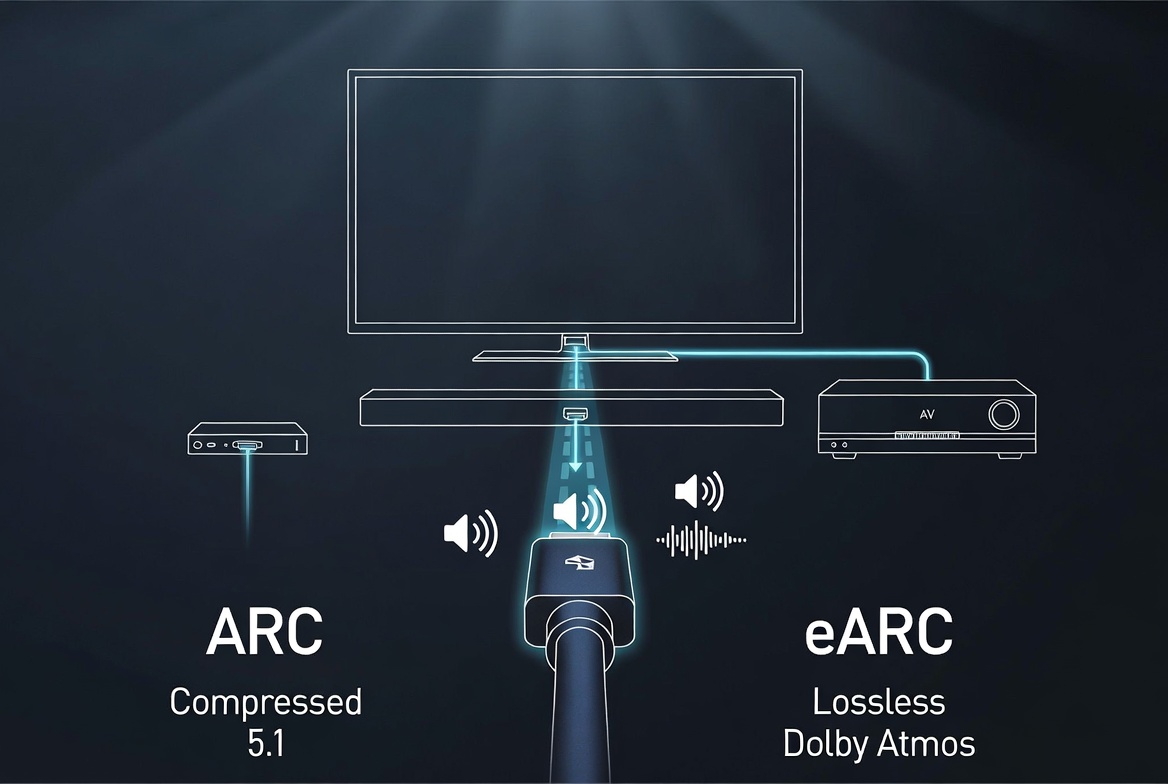
HDMI ARC was introduced with HDMI 1.4 to simplify how TVs talk to external sound systems. [youtube]
- The TV can send audio from:
- Built‑in apps (Netflix, Disney+, Prime Video).
- Devices connected to other HDMI ports (console, Blu‑ray, streaming box).
- That audio goes back through a single HDMI cable to your soundbar or AV receiver. [techradar]
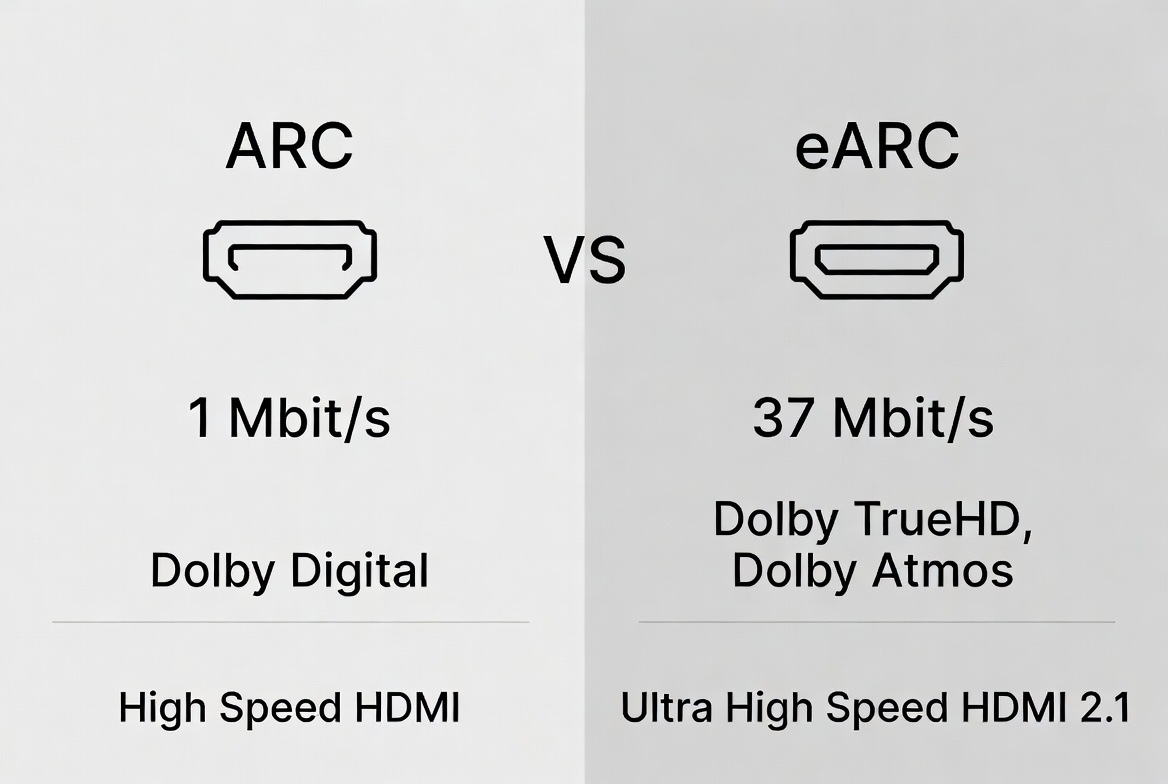
Technically, ARC offers around 1 Mbit/s of audio bandwidth, which limits it to compressed 5.1‑channel formats such as Dolby Digital and DTS. It works very well for everyday TV use, but it cannot deliver the full detail of today's high‑bitrate soundtracks. [silklandtech]
HDMI eARC arrived with HDMI 2.1 and is designed for premium home theater setups. [youtube]
- Bandwidth jumps from roughly 1 Mbit/s (ARC) to up to 37 Mbit/s (eARC). [silklandtech]
- It supports:
- Uncompressed PCM 5.1 and 7.1.
- Dolby TrueHD, DTS‑HD Master Audio.
- Full, lossless Dolby Atmos and DTS:X. [youtube]
This extra bandwidth means eARC can carry the same high‑resolution audio you get from a Blu‑ray disc or high‑end streaming service, without squeezing it into a lower‑quality compressed format. eARC also adds more reliable automatic lip‑sync correction, helping keep voices matched to mouth movement. [youtube]
Below is a streamlined comparison that reflects current best‑practice guidance and typical real‑world behavior. [techradar]
| Feature | HDMI ARC | HDMI eARC |
|---|---|---|
| Approx. audio bandwidth | ~1 Mbit/s (silklandtech) | Up to 37 Mbit/s (silklandtech) |
| Typical HDMI version | HDMI 1.4 / 2.0 (youtube) | HDMI 2.1 (youtube) |
| PCM support | 2.0 stereo only (silklandtech) | Up to 5.1 / 7.1 PCM (silklandtech) |
| Dolby Digital / DTS 5.1 | Compressed supported (silklandtech) | Compressed supported (silklandtech) |
| Dolby Digital Plus (DD+) | Limited bitrates (silklandtech) | Higher bitrates (silklandtech) |
| Dolby TrueHD / DTS‑HD MA | Not supported (silklandtech) | Lossless supported (silklandtech) |
| Dolby Atmos / DTS:X | Compressed via DD+ only (silklandtech) | Full lossless support (silklandtech) |
| Lip‑sync correction | Often manual (youtube) | Automated/stronger (youtube) |
| Recommended cable type | High‑Speed HDMI 1.4+ (techradar) | Ultra High‑Speed HDMI 2.1 (silklandtech) |
In short: ARC = compressed home audio, eARC = full cinema‑grade sound when all devices and cables support it. [youtube]
From a practical user perspective, the difference between ARC and eARC is not just numbers—it's what you hear in your living room. [youtube]
With ARC, you typically get:
- Clear stereo or 5.1 surround.
- Good quality for everyday watching.
- Occasional lip‑sync issues or missing Atmos metadata. [youtube]
With eARC, you can experience:
- More precise sound placement (voices centered, effects around you).
- Deeper bass and a wider soundstage from lossless tracks. [youtube]
- More stable sync between audio and video, especially with complex setups (consoles, streamers, Blu‑ray). [youtube]
Many reviewers and home‑theater enthusiasts report that simply moving from ARC to correctly configured eARC made the sound "open up," revealing details like subtle ambient effects and cleaner dialogue. [youtube]
To benefit from HDMI ARC or eARC, every link in the chain matters: TV, soundbar/receiver, and cable. [fyelec]
Key steps:
- Inspect the HDMI ports on your TV and sound system.
- Look for labels like "ARC" or "eARC" above the HDMI input.
- Usually, only one port supports ARC/eARC, often HDMI 1 or HDMI 2. [fyelec]
- Check your manuals or spec sheets:
- Newer HDMI 2.1 TVs often include eARC.
- Many premium soundbars and AV receivers from LG, Samsung, Sony, Denon, etc., now support eARC. [silklandtech]
- Remember: If one device only supports ARC, the connection will default to ARC behavior even if the other device supports eARC. [techradar]
Using the wrong cable is one of the most common reasons people never unlock the full potential of ARC/eARC. [fyelec]
- For ARC:
- A standard High‑Speed HDMI (HDMI 1.4 or later) cable is usually sufficient. [youtube]
- For eARC:
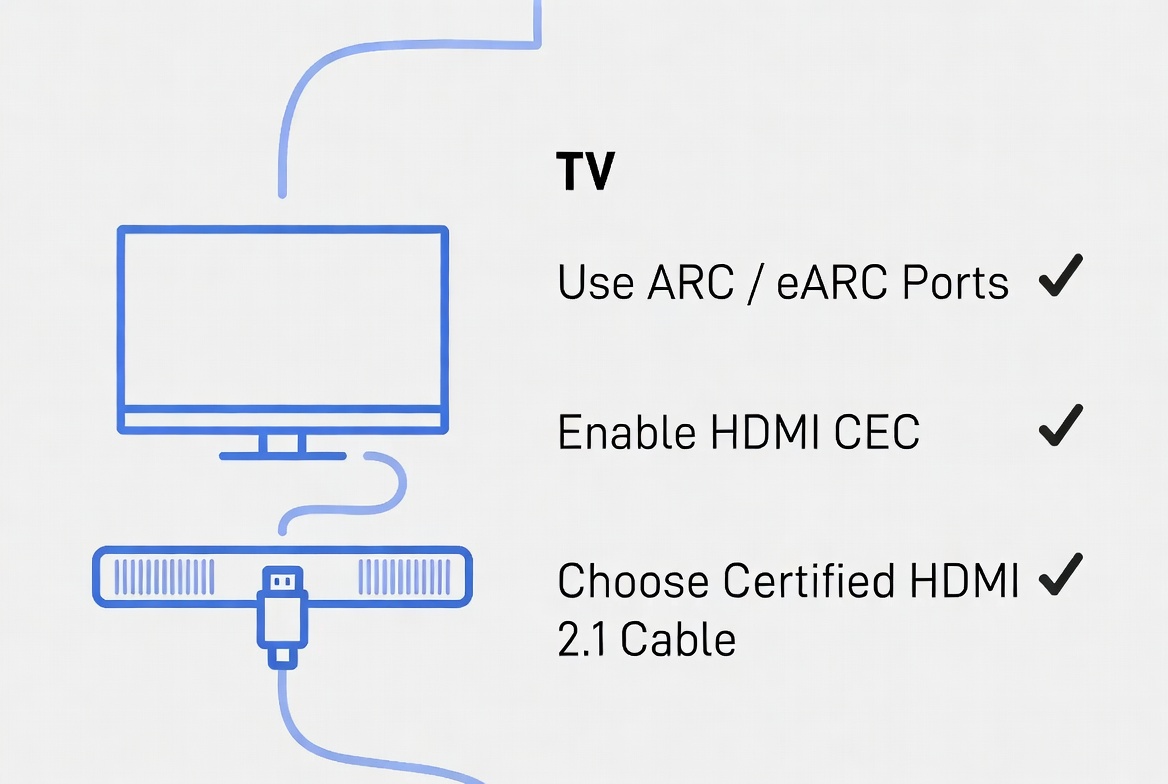
- A certified Ultra High‑Speed HDMI 2.1 cable is strongly recommended to ensure full bandwidth and stable transmission. [fyelec]
- These cables are designed for high data rates and work best with uncompressed Dolby Atmos, DTS:X, and high‑frame‑rate 4K/8K video. [silklandtech]
Low‑quality or outdated cables can cause:
- Audio dropouts or intermittent sound.
- Failure to activate ARC/eARC at all.
- Lip‑sync problems or lost advanced audio formats. [youtube]
Manufacturers often advise keeping HDMI cables under about 10 feet (3 meters) for critical eARC connections and using shielded designs to reduce interference. [fyelec]
For most users, setup problems come from using the wrong port, cable, or TV settings. The following procedure reflects expert guidance and common industry recommendations. [prerolls]
- On your TV, find the HDMI port labeled ARC or eARC.
- On your soundbar or AV receiver, locate the HDMI input/output marked ARC or eARC. [youtube]
- Ignore standard HDMI ports for this connection; they do not support audio return. [techradar]
- For ARC: plug in any reliable High‑Speed HDMI cable (HDMI 1.4+). [youtube]
- For eARC: connect a certified HDMI 2.1 cable to support uncompressed audio and modern video standards. [fyelec]
- Plug one end of the HDMI cable into the TV's ARC/eARC port.
- Plug the other end into the soundbar's or receiver's ARC/eARC port. [youtube]
- Enable HDMI‑CEC on your TV (often branded as Samsung Anynet+, Sony Bravia Sync, LG Simplink, etc.). [youtube]
- Set Audio Output to:
- ARC/eARC, External speakers, or HDMI audio out.
- For eARC, select Bitstream, Pass Through, or Auto to allow advanced formats like Atmos. [ultimea]
- Select the HDMI ARC/eARC input as the active source.
- Enable any dedicated ARC Mode or eARC Mode options in the audio device's menu. [youtube]
- Play a movie or clip that explicitly supports surround sound (preferably Dolby Atmos) via a streaming app or Blu‑ray player. [ultimea]
- Confirm that sound is coming from the external speakers and that all channels are active. [fyelec]
Even with the right gear, misconfigurations can lead to silence or poor sound. Below are typical issues and solutions based on current troubleshooting guides. [prerolls]
Problem: No sound via ARC/eARC
- Possible causes:
- Wrong HDMI port used.
- ARC/eARC disabled in TV or soundbar settings.
- Incompatible or damaged HDMI cable. [youtube]
- Solutions:
- Double‑check that both ends are connected to ARC/eARC ports.
- Turn on HDMI‑CEC and ARC/eARC in both devices.
- Try a certified Ultra High‑Speed HDMI cable. [prerolls]
- Update firmware for TV and soundbar/receiver. [prerolls]
Problem: Dolby Atmos or DTS:X not working
- Possible causes:
- TV app or source device not outputting Atmos.
- TV limited to ARC, not eARC.
- Soundbar/receiver lacks support for Atmos/DTS:X. [ultimea]
- Solutions:
- Enable Atmos or high‑bitrate audio in the streaming app and TV audio menu.
- Check that both TV and audio device support eARC and Atmos.
- Ensure audio output is set to Bitstream/Pass Through rather than PCM stereo. [ultimea]
Problem: Lip‑sync issues or delayed audio
- Causes:
- Bandwidth limitations, extra processing, or mis‑matched settings.
- Solutions:
- Use eARC with a high‑quality HDMI 2.1 cable where possible. [youtube]
- Enable automatic lip‑sync in TV and receiver if available.
- Avoid extra audio processing modes that add delay. [techradar]
Many users discover that a simple setting—like changing TV output from PCM to Bitstream—dramatically improves surround performance and Atmos reliability. [youtube]
You do not always need eARC, but you should know when it matters. [silklandtech]
ARC is usually enough when:
- You mainly watch regular TV, streaming, and basic 5.1 content.
- Your soundbar or receiver only supports standard Dolby Digital or DTS.
- You are not aiming for true lossless Atmos or DTS:X. [silklandtech]
eARC becomes essential when:
- You invest in a high‑end home theater with Dolby Atmos or DTS:X.
- You want uncompressed 5.1 or 7.1 PCM, Dolby TrueHD, or DTS‑HD MA from Blu‑ray or advanced streaming sources. [youtube]
- You use modern HDMI 2.1 TVs and consoles and want audio quality to match high‑resolution, high‑frame‑rate video. [techradar]
For serious home‑cinema users, eARC is not just a convenience—it's the required backbone that lets the audio system reach its full potential. [youtube]
Audio specialists and home‑theater brands highlight a few practical best practices that make a noticeable difference. [ultimea]
- Always prioritize HDMI ARC/eARC over optical if you care about Atmos and high‑bitrate formats.
- Place your soundbar correctly:
- Centered under the TV.
- At or near ear level.
- Front unobstructed (do not hide it inside a cabinet). [ultimea]
- Match the sound system to room size:
- Smaller rooms: 2.1 or entry‑level 5.1.
- Medium rooms: 3.1.2 or 5.1.2 Atmos systems.
- Larger rooms: 7.1 or 7.1.4 setups. [ultimea]
- Balance bass and surround levels instead of maxing them out; very high bass often reduces clarity instead of increasing impact. [ultimea]
- Keep your firmware and apps updated so your devices can support the latest audio formats and bug fixes. [prerolls]
From a manufacturer's perspective, cable design directly affects ARC/eARC reliability. [fyelec]
A well‑built HDMI cable for ARC/eARC typically offers:
- Sufficient bandwidth for HDMI 1.4+ (ARC) or HDMI 2.1 (eARC).
- Robust shielding to reduce interference from other electronics.
- Stable performance over typical home‑theater distances. [silklandtech]
For eARC use, making sure the cable is certified to HDMI 2.1 standards helps avoid dropouts and handshake issues, particularly when you combine high‑resolution video with lossless audio in the same setup. [techradar]
Q1: Do I need new HDMI cables to use eARC?
A: ARC works with most High‑Speed HDMI cables, but eARC is more reliable with certified Ultra High‑Speed HDMI 2.1 cables, especially for lossless Atmos and modern 4K/8K video. [fyelec]
Q2: Will eARC improve my picture quality?
A: No. ARC and eARC are strictly audio features; video improvements come from HDMI version and cable bandwidth, but eARC helps keep audio fidelity in line with high‑resolution video. [youtube]
Q3: Can I get Dolby Atmos over ARC?
A: Yes, but usually in a compressed form via Dolby Digital Plus, not in full lossless TrueHD quality; eARC is required for true lossless Atmos. [youtube]
Q4: What if my TV supports eARC but my soundbar only supports ARC?
A: The connection will default to ARC capabilities, so you won't get lossless audio formats even though the TV is eARC‑ready. [silklandtech]
Q5: Is optical audio still useful?
A: Optical remains a solid option for basic surround sound, but it cannot carry lossless Dolby TrueHD or full Atmos/DTS:X metadata, so it is not ideal for future‑proof home theaters. [techradar]
1. TechRadar – HDMI ARC and HDMI eARC: the differences explained https://www.techradar.com/televisions/av-receivers/hdmi-arc-and-hdmi-earc-the-differences-explained
2. Silkland – ARC vs eARC: What's the Difference? https://silklandtech.com/blogs/news/arc-vs-earc
3. Fyelec – HDMI Cables for Soundbar: How to Use ARC & eARC Correctly https://www.fyelec.net/hdmi-cables-for-soundbar-how-to-use-arc-earc-correctly/
4. Ultimea – Want Great Sound? Don't Ignore These 5 Setup Details https://www.ultimea.com/en-ca/blogs/knowledge/want-great-sound-don-t-ignore-these-5-setup-details
5. NextGen Viewing and Audio – Why Is HDMI ARC/eARC So Complex For Audio Setup? https://www.youtube.com/watch?v=Gd2nOVE56fY
6. OREI / YouTube – ARC vs eARC Explained: What's the Difference for Soundbars & Dolby Atmos? https://www.youtube.com/watch?v=1I53oo84I60
7. Most People Use eARC WRONG – YouTube https://www.youtube.com/watch?v=M3e0xYir7Ng
8. HDMI ARC/eARC Demystified: Simplify Your Audio Setup – Fycables https://fycables.com/hdmi-arc-earc-demystified-simplify-your-audio-setup/
9. HDMI ARC and eARC Setup Guide for Soundbars and Home Theaters – Prerolls https://www.prerolls.me/hdmi-arc-earc-setup-troubleshooting-soundbars
10. eARC vs. ARC: Key Differences and Which One to Use – Valerion https://www.valerion.com/blog/earc-vs-arc


